For intermediate ComfyUI users focused on practical image generation and editing, the past 24 hours brought useful community shares around ready-to-use extensions and workflows that fit directly into everyday pipelines. No need for complex setups or experimental features—just straightforward nodes that speed up iteration. Here are two focused topics with strong overlap for ComfyUI users who already run Stable Diffusion or Flux-based pipelines and want to incorporate LoRA support or advanced editing without leaving the graph.
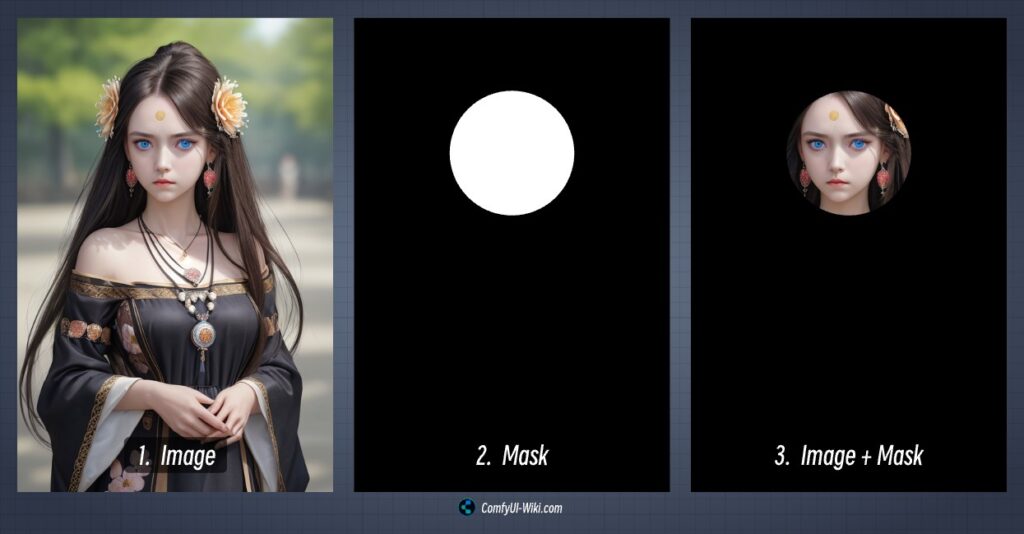
First, the recently highlighted Comfy-Canvas extension brings Photoshop-style layers, masks, and brush tools straight into ComfyUI. Shared widely in the community on April 19, this node set lets you paint, blend, and edit non-destructively while keeping everything inside your existing workflow. It supports mask persistence across nodes, brush-based inpainting, and layer stacking—all running locally with no extra dependencies beyond a standard ComfyUI install. For users generating AI images and then needing quick refinements (like adjusting facial details, adding elements, or cleaning up compositions), this eliminates the round-trip to external editors.
To get started, simply install the extension via the ComfyUI Manager (search for “Comfy-Canvas” or the GitHub repo by Zlata-Salyukova), restart, and load one of the included example workflows. Drop your base image into the canvas node, apply masks with the built-in brush, tweak blend modes, and route the output straight to your sampler or upscaler. Make small tweaks if needed for resolution or sampling steps—the nodes are designed to slot into most Flux or SDXL pipelines without breaking existing setups. This is especially handy for iterative prompt engineering where you generate, review, mask specific areas, and regenerate only the changed regions. Long-tail searches like “ComfyUI canvas layers mask editing workflow 2026” or “ComfyUI Photoshop style nodes for AI image editing” point directly to the repo and ready JSON files.
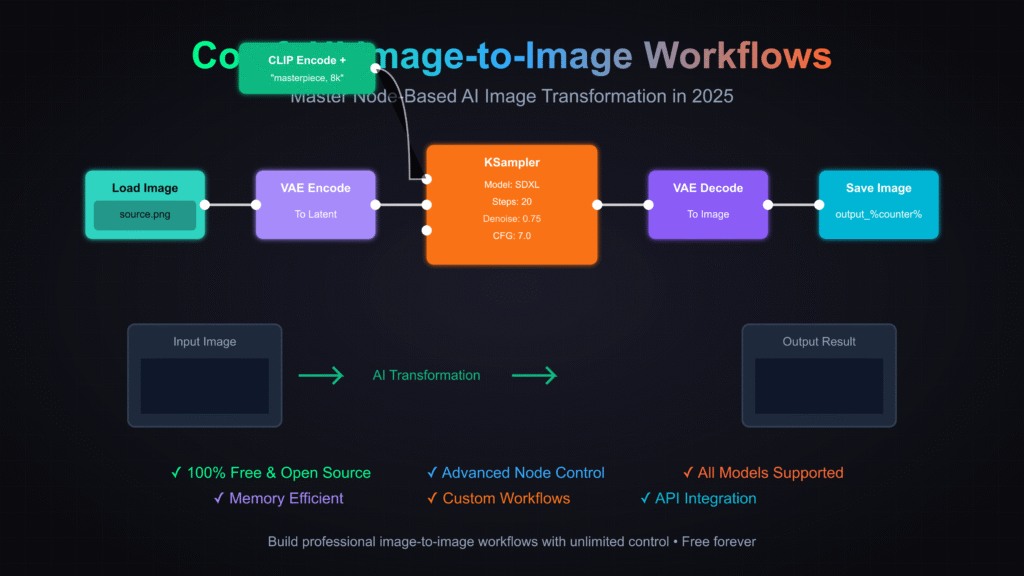

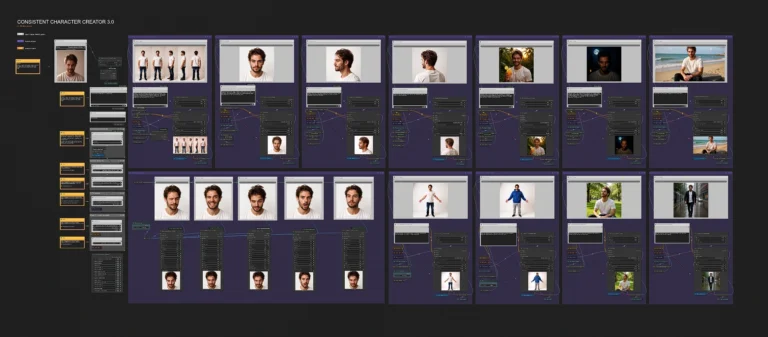
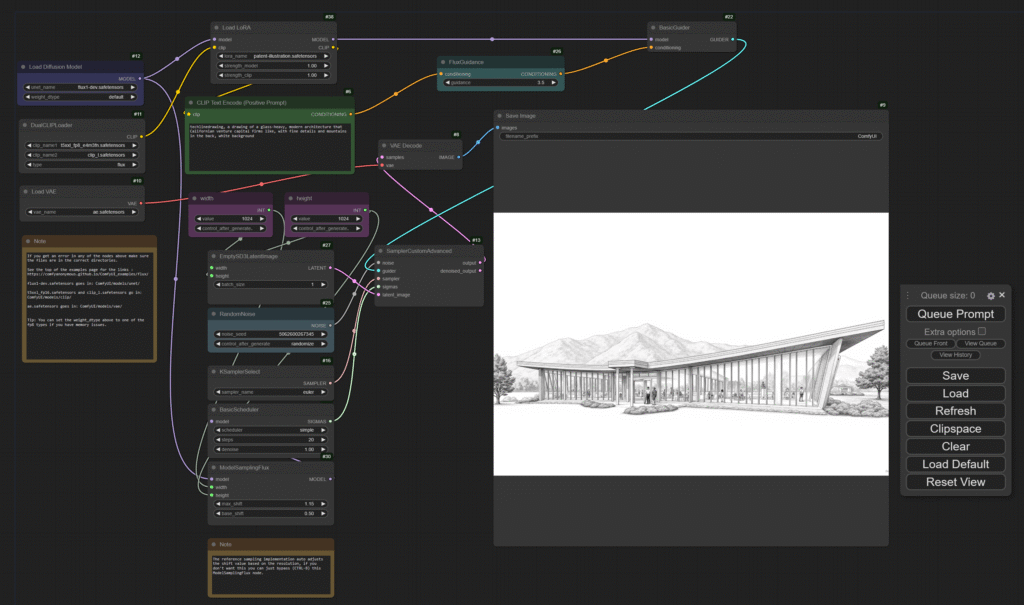
Second, practical Flux LoRA integration remains a go-to for users wanting style control or subject consistency without full model retraining. Recent community workflows demonstrate clean setups for loading Flux.2 LoRAs directly in ComfyUI, with nodes for strength adjustment, dual CLIP loading, and ControlNet options (depth or Canny) to guide generation. These are ideal for intermediate users who already have Flux dev or schnell checkpoints and want to apply character-specific or artistic LoRAs for batch production.
Download a tested Flux LoRA from Civitai or Hugging Face (many recent ones focus on consistent faces, illustration styles, or photoreal tweaks), place it in your LoRA folder, and load the corresponding JSON workflow. The graph typically includes a DualCLIPLoader for the base Flux model, a LoRA loader node with strength sliders (start at 0.8–1.0 and adjust down for subtlety), and a standard KSampler with Flux-specific settings (steps around 20–30, CFG 3.5). Simply load the workflow, point to your prompt and any reference image for ControlNet if using, queue the prompt, and generate. Small tweaks like changing the seed, resolution (1024×1024 is a safe default for Flux), or LoRA weight let you dial in results fast. The setup supports multiple LoRAs stacked if needed, and output routes cleanly to preview or save nodes. This workflow approach works reliably for both single images and batch runs, keeping VRAM usage manageable on mid-range GPUs.
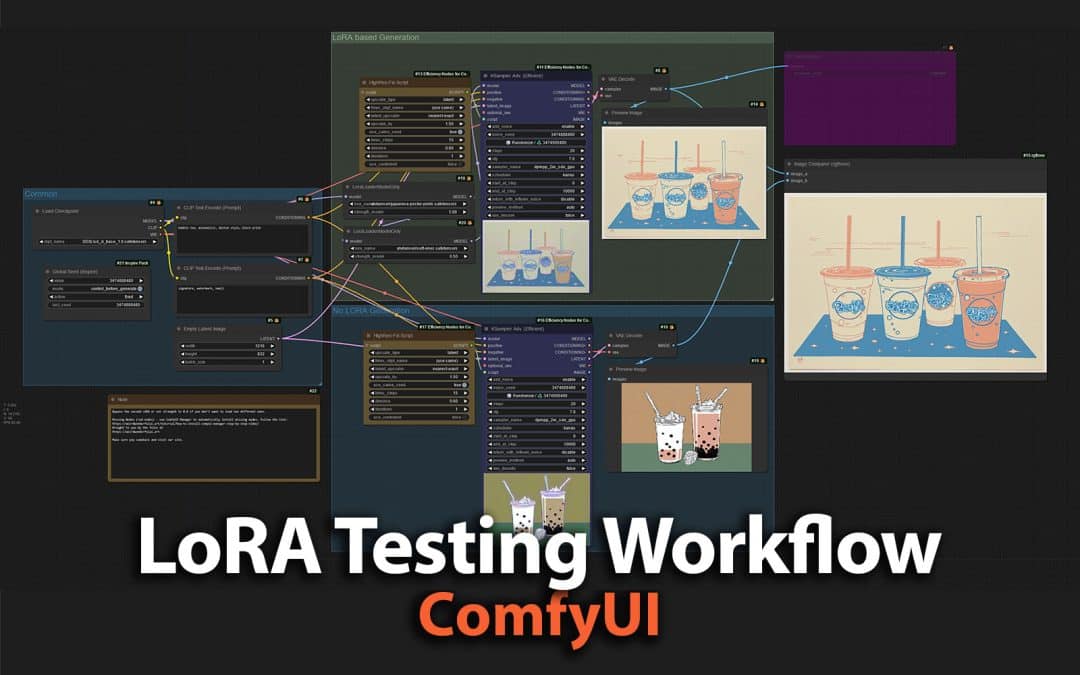
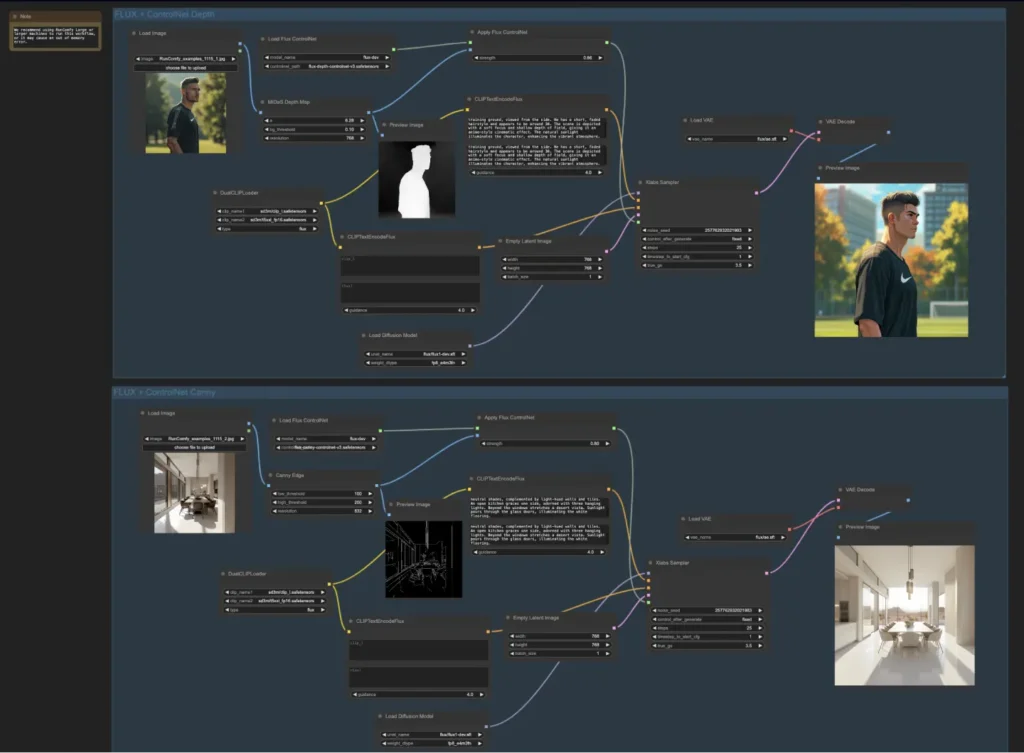
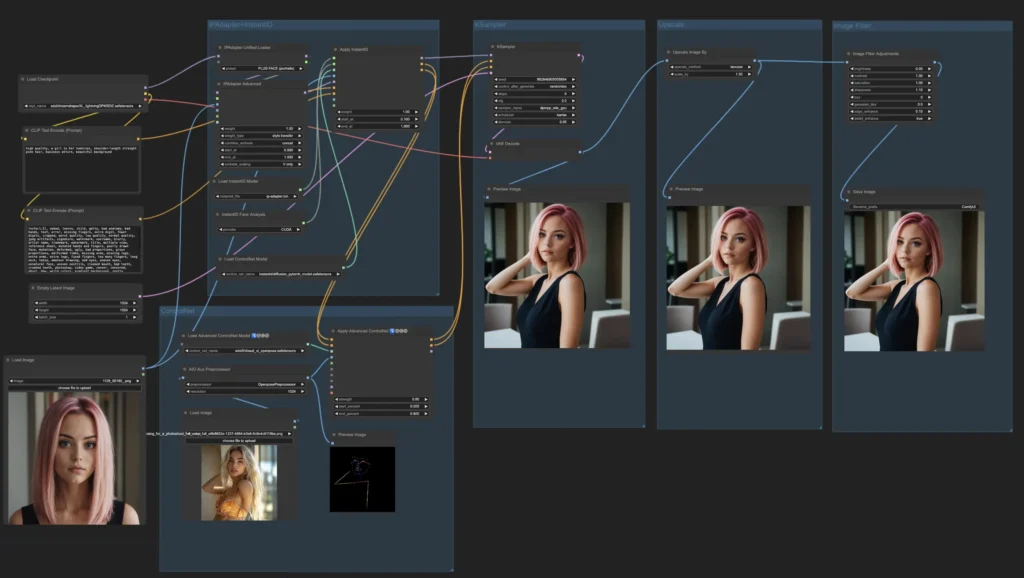
Both the Canvas extension and Flux LoRA workflows emphasize modularity—load once, tweak parameters, and iterate without rebuilding graphs from scratch. They integrate seamlessly with existing ComfyUI setups for prompt engineering, upscaling, or post-processing. If you’re looking for ready-to-use ComfyUI workflows & models with LoRA support or our ever-growing AI wallpaper packs, feel free to check the collections on Neonframe Studio. One-time purchase, instant download.
The images used in this article are sourced from publicly available channels on the internet. They are used solely for the purposes of news commentary, visual illustration, and explanatory reference, and do not constitute commercial use. The author of this article does not own the copyright to these images and makes no claim to any rights over them. If any copyright issues arise regarding these images, please contact the article’s author, and we will promptly address the matter or remove the relevant content.