For intermediate ComfyUI users working with AI image generation, recent community shares around Flux.2 Klein models and their LoRAs offer straightforward ways to extend capabilities without major overhauls. Focus remains on loading these efficient distilled models and applying LoRAs for targeted adjustments, using standard node setups that most users already have in place.
Flux.2 Klein variants, such as the 4B parameter version, are built for lower VRAM setups while maintaining decent output quality for many tasks. To get started, update ComfyUI through the manager if needed, then download the base Flux.2 Klein model files along with any compatible VAE and text encoders. Place them in the appropriate directories. Load a basic text-to-image workflow JSON for Flux, which typically includes the dual-encoder paths for T5 and CLIP. Connect your prompt input, set sampler parameters suited to the model (often lower guidance scales work well), and run a test generation. This gives a clean baseline before adding custom elements.
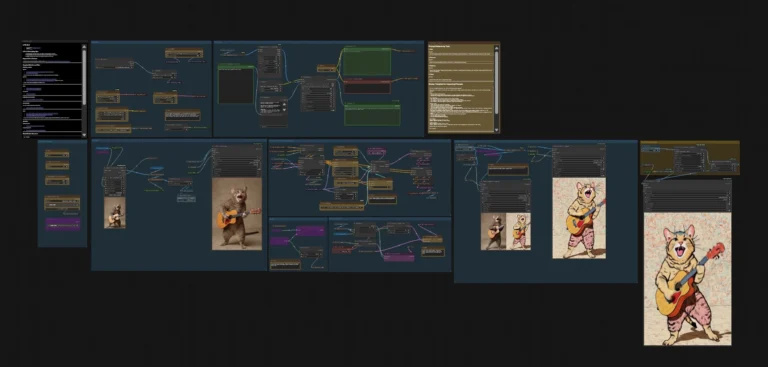
For LoRA integration, recent examples include specialized ones like zoom-style adapters shared with converted safetensors files and example workflows. Download the LoRA file, rename if required for compatibility, and drop it into your models/Lora folder. In the workflow, insert a Flux-specific LoRA loader node (or the general one if using a compatible setup). Connect the base model and CLIP outputs to the loader inputs, then link the loader’s output to your sampler or conditioning nodes. Set the LoRA strength starting around 0.7–1.0 and include any trigger words from the LoRA description in your prompt if applicable. Simply load the provided workflow JSON, make small tweaks to strength or prompt details if needed, and queue the generation. Test on a single image at standard resolution first to check for artifacts or desired effect.
This setup keeps things modular. You can duplicate the LoRA section in the workflow to compare multiple strengths side-by-side or combine with basic ControlNet nodes if your LoRA benefits from additional guidance. For batch work, adjust queue settings and let ComfyUI handle the variations. The Klein models’ efficiency means you can iterate faster on consumer hardware compared to full-size Flux versions, especially when layering one or two LoRAs without pushing VRAM limits.
Prompt handling follows Flux’s natural language approach. Keep descriptions clear and structured—subject first, followed by details on composition, lighting, and style—rather than comma-separated tags. The T5 component helps with context, so shorter or medium-length prompts often suffice once you dial in the LoRA influence. If results shift too far from expectations, reduce strength slightly or refine the prompt with more specific descriptors.
These techniques build on existing ComfyUI Flux workflows without requiring new custom nodes in most cases. Load, connect, tweak, and generate keeps the process contained and repeatable for consistent character work, style experiments, or scene variations.
If you’re looking for ready-to-use ComfyUI workflows & models with LoRA support or our ever-growing AI wallpaper packs, feel free to check the collections on Neonframe Studio. One-time purchase, instant download.